
Quick Hits:
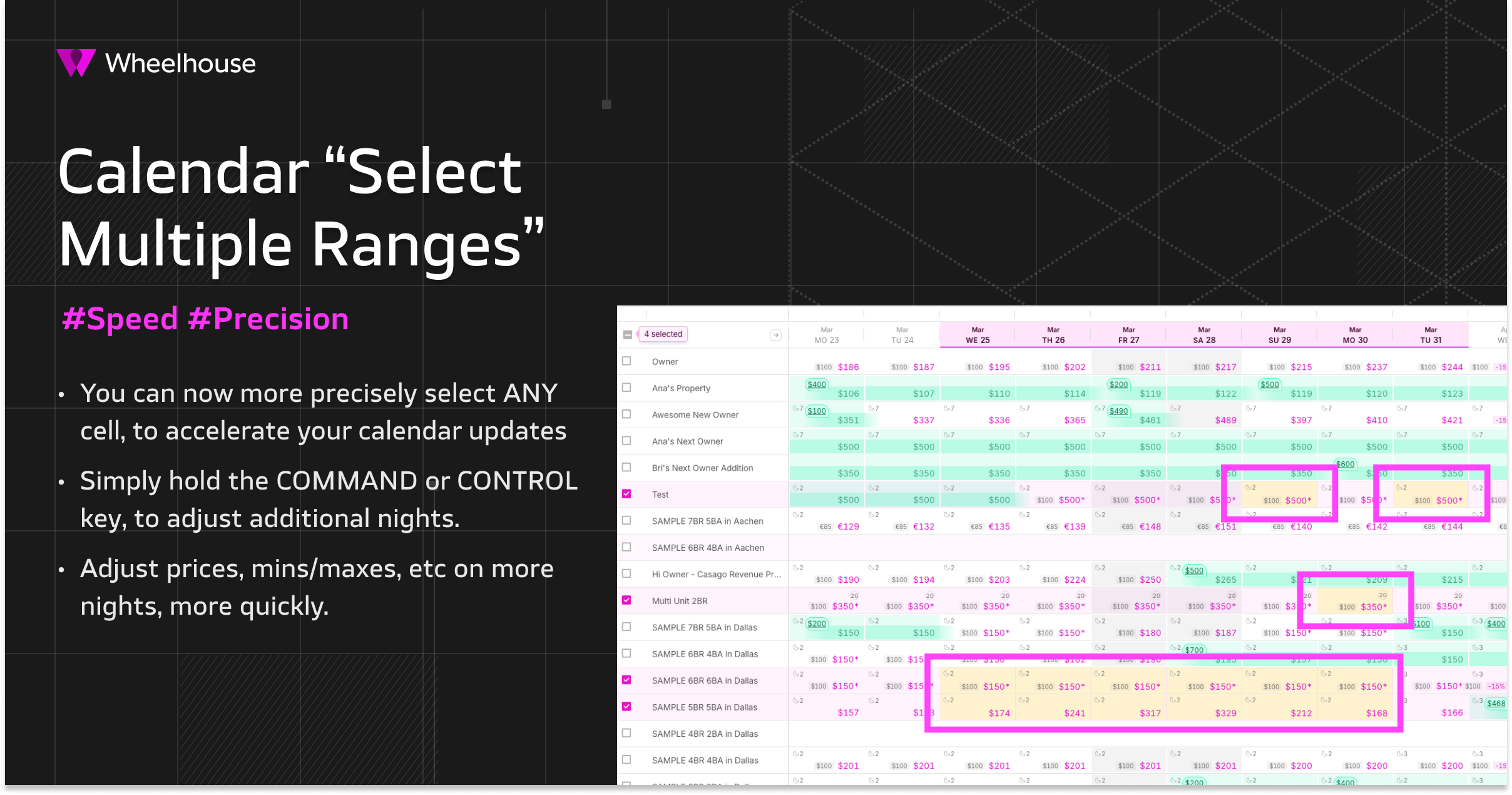
- You can now select multiple non-adjacent cells in the Portfolio Calendar — any combination of listings and dates you choose.
- Selections are additive: keep clicking to build up a set of scattered nights without losing what you've already picked.
- Simply hold “Control” or “Command” to add more dates/ranges to your selection.
- This works for your bulk setting updates — Daily Rates, Min Stay, Min & Max Price.
📽️
Demo Video Here:
🗝️ Unlock: Select & Modify Any Cells You Want
The Portfolio Calendar has always let you drag a contiguous set of date ranges & listings.
However, it did not enable you to pick scattered, non-adjacent nights and listings, and treat them as a single selection.
Until… now!
As of today, your portfolio calendar enables you to select any individual cells — across non-adjacent dates or listings — and apply a single bulk update across all of them.
This should make your pricing & settings updates much more targeted, precise, and fast.
While there are myriad use cases, here are a few worth highlighting:
🧹 Use Case: Orphan Night Cleanup
It's not unusual to have 1–2 night gaps between reservations.
These gaps can be scattered all over your calendar — different dates, different listings, no perfect pattern.
Before, you'd have to hunt them down one-by-one, and make updates (e.g. lowering min prices, min stays, etc) one at a time.
Now, you can scan your calendar, click each orphan cell, and push updates across all selected cells at once.
⚡ Use Case: Last-Minute Unsold Nights
To explore another use case, let’s imagine it's Thursday afternoon.
You have unsold nights this weekend scattered across 15 listings — different dates on different properties. You need to act before the weekend window closes.
Multi-select lets you build that exact set of cells — no matter how scattered — and cut rates or remove min stay restrictions across all of them in one shot.
✂️ Building & Updating Your Selection
Selecting multiple ranges is quite intuitive.
Simply hold the Control or Command key while making multiple selections.
As you add more cells, a counter shows how many cells, listings, and dates are in scope — so you can see the full picture before you apply any changes.
Accidentally add an extra date or listing?
Simply click that cell while still holding the Control or Command key, and you can easily modify your selection.
Or, close your side panel to one-click clear all active selections.
When your selection is ready, leverage your bulk updates tool much as before, to update any of the following:
- Rates
- Minimum Stays
- Min Price / Max Price
- Notes
And, you can even delete existing rates from all selected cells.
📋 Audit Trail: Per-Listing Changelog
Every bulk update from this multi-range selection creates a changelog entry for each listing.
Each entry records who made the change, when, what was updated, and the specific dates affected for that listing.
🚀 How to Get Started
Simply navigate to your Portfolio Calendar and start clicking cells to build your selection.